LCFGameStick Special Settings by Lyncconf: What’s Confirmed, What Isn’t, and How to Build Your Own Tested Setup
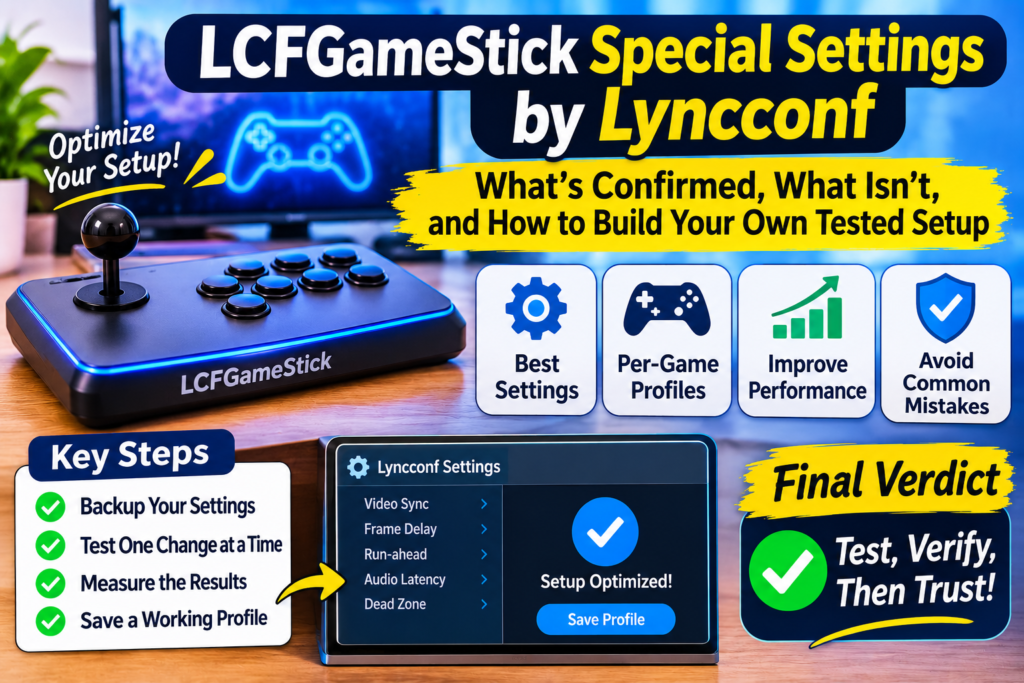
If you searched for lcfgamestick special settings by lyncconf, you probably expected a clean list of menu options and values. Most pages that rank for this phrase give you that. The problem is that they don’t agree with each other. One describes a controller, another describes a YAML config tool, and another describes a per-game override file. Some of them list “seven things” Lyncconf adjusts and never name the seven.
This guide takes a different approach. It separates what can reasonably be said from what can’t, then gives you a method to find settings that work on your own hardware and prove it with numbers. You won’t find invented values here. Where a number depends on your display, firmware, or game, the table tells you what to test instead of pretending there is one correct answer.
What People Actually Mean by This Search
The phrase mixes three different things, and keeping them apart saves hours of confusion.
The device side
“LCFGameStick” is used in two ways. Some pages describe an arcade-style stick or controller with a low-force design, square or octagonal gates, and Hall Effect sensors. Others use the name for a small gaming stick that runs emulators. Both usages appear in search results, and neither comes with an official manual that every page points to.
The Lyncconf side
“Lyncconf” is used in even more ways. Depending on which page you read, it is a settings menu, a per-game override file, a profile loader that reads files from a folder, or a configuration manager that reads manifests. The brand name also overlaps with older Microsoft Lync conferencing, which is why many search results are server documentation that has nothing to do with games.
Why the confusion exists
Search phrases like this often grow out of keyword clusters. A site publishes a dozen near-identical titles (settings, instructions, updates, resolution, upgrades), and each page borrows terms from the others. The result is content that reads confidently but never anchors itself to a manufacturer, a firmware version, or a screenshot.
That does not mean your device is fake or that nothing works. It means you should treat any single page, including this one, as a starting point and verify on your own unit.
What Can Be Said With Confidence and What Can’t
Use this table as a filter when reading any guide on the topic.
| Claim you will see | Confidence | How to check it |
|---|---|---|
| Per-game overrides improve consistency | High, this is how emulator front ends work in general | Save an override, reload the game, confirm the setting persists |
| Lyncconf has exactly seven adjustable options | Low, no page lists them | Look for a settings screen on your device and count |
| One universal “best” preset exists | Very low, depends on display, game, and firmware | Test two presets on the same game and compare |
| Settings fix stutter in classic platformers | Medium, frame pacing issues are real and fixable | Record frame-time before and after |
| Any file named lyncconf is safe to download | Low | Check the source, scan the file, read it in a text editor |
| Hall Effect sticks resist drift better than potentiometer sticks | High, this is how the sensors work | Compare dead zone behavior over time |
When a guide states something from the low rows without evidence, treat it as unverified until you reproduce it yourself. A page that says it uses lcfgamestick special settings by lyncconf to “unlock real performance gains” should be able to show the before and after. Few do.
Before You Change Anything
Most settings disasters come from skipping preparation. Spend ten minutes here.
Back up the current state
Copy every config folder on your device to a computer or a separate drive. If the device uses per-game files, copy those too. Label the backup with the date and firmware version.
Record a baseline
You cannot call a setting an improvement without a number to compare against. Before changing anything, record:
- The game and exact version you will test
- Display model and its mode (game mode on or off)
- Connection type (wired or wireless)
- A short gameplay clip of a scene that stutters or feels laggy
- Your subjective rating of control feel from 1 to 5
Confirm version compatibility
One of the more useful claims on competitor pages is that mismatched versions cause real breakage. A profile written for one firmware generation may be handled differently by another. Check your firmware version in the system menu and write it down. If you copy a profile from a forum post, check which version it was made for.
Setting Categories Worth Testing
These are the areas where changes tend to matter on emulator-based handhelds and sticks. They are categories to test, not guaranteed menu names on your device. Your interface may label them differently or hide some of them.
| Category | What it affects | What to test | How to measure |
|---|---|---|---|
| Video sync (vsync) | Screen tearing vs added delay | On vs off | Look for tearing in horizontal scrolling scenes |
| Frame delay | Input lag vs risk of stutter | Increase in small steps until stutter appears, then back off | Frame-time graph or a high-speed phone camera |
| Run-ahead | Removes internal game lag in some titles | Off vs 1 frame | CPU load and whether audio crackles |
| Threaded video | Smoothness on weak hardware | Off vs on | Stutter count in a one-minute clip |
| Audio latency | Sync between sound and action | Lower buffer until crackling starts | Listen for pops, watch lip or hit sync |
| Analog dead zone | Drift and tiny unwanted inputs | Smaller vs larger dead zone | Check menu cursor creep with sticks at rest |
| Polling rate | How often the device reports inputs | Default vs higher option if offered | Compare feel in fast games, not just numbers |
| Display scaling | Image sharpness and processing delay | Integer scaling vs stretch | Zoom into pixel edges |
A practical rule: change one category at a time. If you change four at once and the game feels better, you will not know which change did it.
Step-by-Step: Building a Per-Game Profile
Here is a repeatable process for applying lcfgamestick special settings by lyncconf, or any equivalent override system on your unit. The steps assume your device lets you save settings per game, which most emulator front ends do.
- Load the game with default settings. Do not touch anything yet.
- Run your baseline test. Play the same 60-second section and record the clip and your rating.
- Open the settings menu for that game. Look for an option labeled game override, per-game settings, or profile.
- Change one category from the table above. Make a small change, not a dramatic one.
- Replay the same 60 seconds. Compare against your baseline.
- Keep or revert. If it helps, keep it. If it does not, undo it.
- Repeat for the next category.
- Save the profile once you are happy. Reload the game and confirm the settings stuck.
- Write down the final values in a note so you can rebuild if the device resets.
If the saved profile does not apply on reload, jump to the troubleshooting table further down.
Starting Points by Goal
These are directions to test, ordered from what usually matters most. Treat them as hypotheses.
Competitive and fast-action games
Your priority is responsiveness. Test these in order:
- Turn off anything that adds a frame of processing, such as heavy post-processing filters
- Try a wired connection if you are wireless
- Test vsync on and off and watch for tearing
- Increase frame delay gradually, then step back one notch when stutter returns
- Tighten the dead zone until you see drift, then loosen it slightly
Retro emulation accuracy
Your priority is matching how the original game behaved. Test these:
- Use integer scaling to keep pixels sharp
- Match the core’s native refresh rate as closely as your display allows
- Try run-ahead only on games known for internal lag, and only if CPU load stays low
- Keep audio latency conservative to avoid crackling in long sessions
Consoles from the 8-bit and 16-bit era were designed for original control schemes, so test your game with a stick or pad layout that resembles the original before you change mappings.
Story and visual-focused games
Your priority is image quality and stable pacing. Test these:
- Prefer stable frame pacing over the highest possible frame rate
- Enable smoothing or shaders one at a time and judge the cost
- Keep input latency settings at defaults unless you notice lag in cutscene-to-gameplay transitions
How to Measure Results Without Guessing
The weakest part of nearly every settings guide is the lack of evidence. You can fix that for yourself with a simple log. Copy this table into a note or spreadsheet and fill it in for every change.
| Test # | Game | Setting changed | Old value | New value | Stutter events in 60 sec | Control feel (1-5) | Keep? |
|---|---|---|---|---|---|---|---|
| 1 | |||||||
| 2 | |||||||
| 3 |
Two measurement methods are worth using:
- Frame-time overlay: If your emulator or front end can show frame times, a flat line means smooth pacing. Spikes mean stutter.
- High-speed phone video: Record the controller and screen together at 120 or 240 frames per second, then count the frames between a button press and the on-screen reaction. This gives you a real latency number without special equipment.
A change that reduces latency by one frame but doubles stutter is not an improvement. The log keeps you honest.
Troubleshooting: When Settings Do Not Apply
Most reported problems with profiles come down to a short list of causes. Check them in this order.
| Symptom | Likely cause | Fix |
|---|---|---|
| Settings reset after reboot | Profile saved to the wrong scope (global vs game) | Re-save as a per-game override and reload |
| Profile ignored | File in the wrong folder or wrong file extension | Compare against a working example file on your device |
| Game runs worse after a change | Setting conflicts with another one | Revert to your backup and retest one change at a time |
| Stutter returns after a firmware update | Version handles the setting differently | Check release notes and retest your baseline |
| Controller drifts | Dead zone too small or stick wear | Increase dead zone slightly, then check hardware |
| Audio crackles | Audio latency set too low | Raise the buffer one step |
If the problem started right after you edited a file by hand, restore the backup first. A single misplaced character in a text-based profile can cause the whole file to be skipped.
Safety Notes for US Players
Because this topic sits near mod and “game hack” content, you should be careful about where files come from.
- Download profiles only from sources you can identify. A forum post with a named author and a discussion thread is safer than an anonymous file host.
- Open config files in a plain text editor before using them. A normal profile contains settings, not executable commands.
- Never run installers or scripts that ask for administrator access just to apply a settings file.
- Keep your original backup untouched. Work on a copy.
- Avoid anything that asks for account logins, payment details, or personal information to deliver a settings file. A settings file never needs them.
If a guide tells you to disable security software to use a profile, close the page.
Common Mistakes That Waste Time
- Changing several settings at once, then not knowing which one helped
- Copying someone else’s profile without matching firmware and display
- Chasing the highest frame rate when pacing is the real problem
- Ignoring the display itself, since game mode on the TV often matters more than any in-device setting
- Skipping backups
- Trusting a page that never explains where its values came from
The Bottom Line
The honest summary of lcfgamestick special settings by lyncconf is that the label is used inconsistently, and no single authoritative source defines it. What you can rely on is the method: back up, record a baseline, change one category at a time, measure, and save a per-game profile only after it proves itself. That process works whether your unit uses a Lyncconf menu, a plain per-game override, or a different system entirely.
If you find a verified manual, a manufacturer page, or a firmware changelog for your specific unit, trust that over any blog, including this one. Then rebuild your settings table from it and keep your test log going.
Frequently Asked Questions
What are LCFGameStick special settings by Lyncconf?
It is a search phrase used for per-game or device-level configuration options, but pages describe it in conflicting ways. Check your device’s own menu to see what it actually offers.
Is there one best preset for every game?
No. The right values depend on your display, firmware, connection type, and the game itself. Test one change at a time.
Can the wrong setting damage my device?
Normal software settings should not damage hardware, but a bad profile can cause crashes or stutter. Keep a backup so you can restore it.
Why does my profile stop working after an update?
Updates can change how settings are read or named. Check release notes, then retest your baseline.
Should I download Lyncconf profiles from forums?
Only from sources you can identify, and open the file in a text editor first. Never run files that ask for admin access.
How do I know a setting actually helped?
Compare against your recorded baseline using frame-time data or slow-motion video. If you cannot measure a difference, keep the default.